I’m Alright – Operating Instructions
I’m
Alright provides a
simple user interface control the application.
It is displayed automatically when the program starts.
Immediately
following installation, the following screens should appear one at a time
requesting permissions. Following are
screen shots from two different versions of Android.
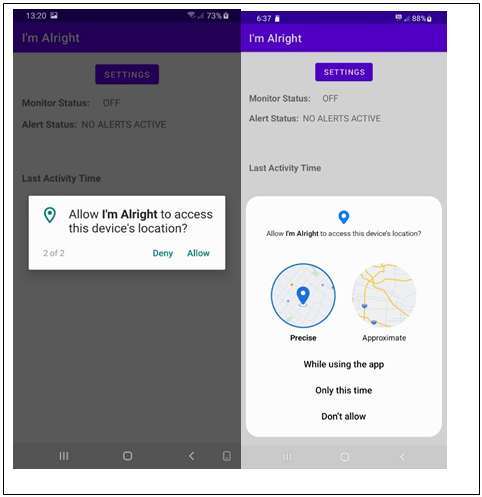
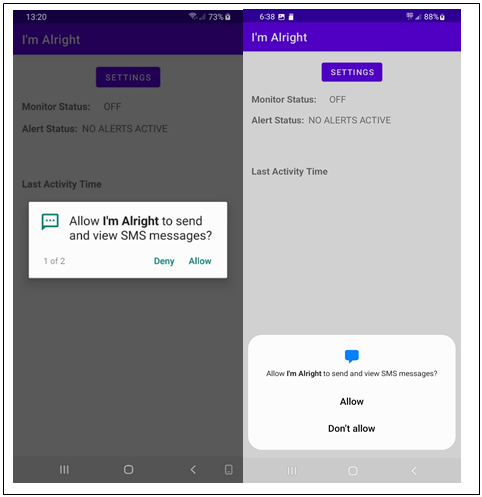
As discussed
in the overview, SMS permission is required for the app to function. If SMS permission is not granted, the app should
be stopped and uninstalled. LOCATION
services permission is optional. If
enabled, the user’s location will be included in alert messages. If it is not enabled, messages will be
distributed but with the location shown as not available. Location services can also be enabled or
disabled through the SETTINGS screen.
Precise location permission allows GPS coordinates to be obtained
with an accuracy generally within 100 feet.
Approximate/Coarse location permission is much less accurate.
The permissions
request screens could appear in the either order. After permissions are granted, they are not
requested again.
Before the I’m
Alive activity monitor can be started, operating parameters must be
established.
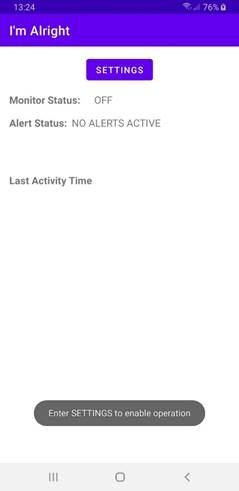
Tap the SETTINGS
button to enter operating settings.
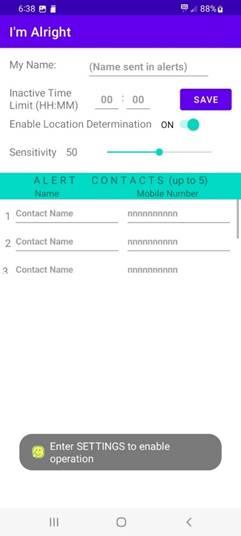
The settings
field definitions are as follows:
|
Field
Name |
Value |
|
My Name |
The phone
owner’s name. The owner’s name is used
to identify alert messages. |
|
Inactive
Time Limit
(HH:MM) |
The amount
of inactive time that will be allowed to pass before an alert is issued. This should be set according to the user’s
daily routine. When this time period
passes without the user moving the phone, text alerts will be sent. For example, 12 hours; HH=12; MM=00 |
|
Enable
Location Determination |
This is a
sliding on-off button that determines whether location information is
included in alert messages. When on
(right, green), location information will be included. When off (left, gray), location information
will be omitted. This can be changed
any time. Once permission is requested
and granted, the permission will remain granted. |
|
Sensitivity |
The motion
detection sensitivity of the device.
This is a slide bar control that can vary between 0 and 100. Zero is the least sensitive and 100 is the
most sensitive. Motion is detected by
utilizing the device’s internal accelerometer. There will be some variation between
smartphone models. When I’m Alright
is installed, the Sensitivity setting will be approximately
50. This has been observed to work in
most cases. To achieve the proper
setting, look at the History report to see how the device responded
during known periods of activity and inactivity. The setting should filter out spurious
indications of movement caused by the phone’s vibration notification and
other extraneous noise such as other people moving about nearby. It should, however, be sensitive enough to
register significant movement such as picking up the phone. The ideal setting can usually be determined
by using a setting which consistently registers no movement during sleeping
hours but shows movement during the day that matches the owners use of the
phone. |
|
Alert
Contacts (Up to three) |
|
|
Contact
Name(s) |
A name for
each of the entered contacts. This is
informational for the user’s setup and not actually used by the app. |
|
Contact
Number(s) |
Valid 10
digit smart phone number(s) to which text alerts will be sent. |
There must be
at least one valid contact entry. Up to
three entries may be specified.
The app will
attempt to validate entries for proper formatting.
Following is
an example of completed settings.
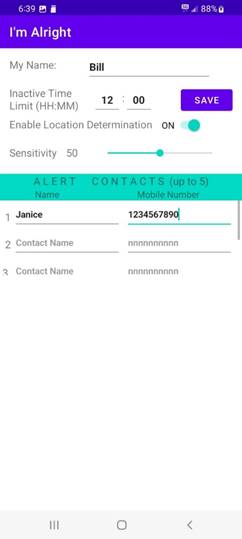
Note that Settings
can only be changed when the activity monitor is not running. If it is running,
Click STOP
MONITOR, then SETTINGS, then START MONITOR.
After the
settings have been established, the I’m Alright activity monitor is
ready to start. Simply tap the START
MONITOR button on the screen.
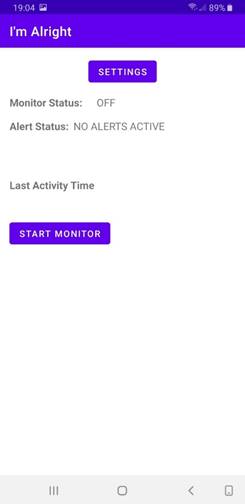
A
notification will be sent to your phone and will stay visible in the
notification bar (swipe down from the top of the screen). The persistent notification is an Android
requirement to remind the user that a background process is running.
After the
activity monitor has been started, no further user interaction is
required. The screen will appear as
follows.
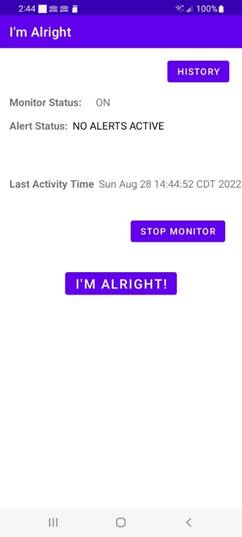
The user
interface component of I’m Alright behaves like any other app. You can switch to another app or use the
Android back button to return the phone’s home screen. The visible app screen can be killed by
swiping it off the screen or using Close All. Although the user interface is gone, the
activity monitor continues to run in the background. The user interface is restarted by tapping
the I’m Alright icon that was added during installation.
The app is
designed to automatically restart after device power down and restarts.
When the
user interface screen is displayed, tapping the STOP MONITOR button will
terminate the background activity monitoring process and return to the START
MONITOR screen.
To provide
regular confirmation that the app is working, a daily confirmation is sent to
the contact list stating –
“I’m Alright Operational Check: Inactivity monitoring is
currently running on <app user>’s phone”
As long as
the phone owner handles the phone before the inactivity time limit expires, no
other messages are sent to the contacts.
The I’M ALRIGHT button is available to voluntarily send
informational/assurance messages to the contact list at any time. This provides an additional method for the
user to notify contacts all is well.
The I’m
Alright button has two functions.
·
It
can be tapped at any time to provide an impromptu notice to the entries on the
contact list. This can be very useful to provide additional feedback that all
is well. For example, a user might find
it desirable to routinely send an I’m Alright text after waking and
right before sleeping. The app resets
it’s inactivity counter when the button is tapped but continues to monitor for
unusual inactivity.
·
It
can be tapped to cancel an inactivity alert in the event the inactivity time
limit has been exceeded but the user is not in need of help. This sends the I’m Alright message, cancels
the alert condition, and resets the inactivity timer to zero.
The History
button allows the user to visualize what their movement activity has
been over the last 24 hours. When
tapped, the app will display an hourly breakdown of the last 24 hours.
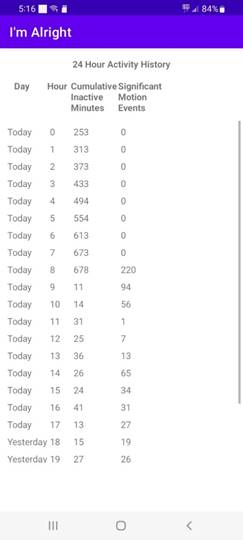
Note that
this display screen scrolls(scroll bar on the right) and the number of lines
appearing on one screen can be dependent upon the device. In this example, the hours between midnight
and 8 PM display on one screen is the remaining four hours are viewed by
scrolling the screen up.
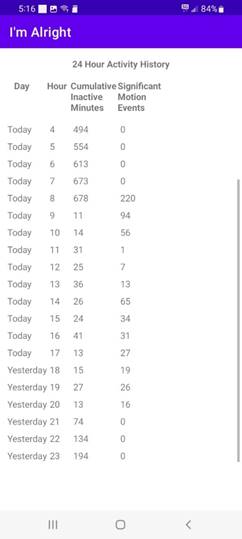
The column definitions are:
Day:
The activity record covers 24 hours and continuously loops
and writes over values of the previous day.
The day field can be Today or Yesterday. The hours between the midnight and the
current hour of the day are labeled as Today. The hours beyond the current hour of day and
midnight are marked as Yesterday since they have not yet passed in the
current day and the data is that of the previous day. The hourly data of the previous day is
automatically overwritten at the beginning of each hour.
Hour:
The hour of day in 24-hour clock representation. Zero (0) is midnight. Twenty-three is that last hour before
midnight (11 PM).
Cumulative Inactive Minutes:
Cumulative Inactive Minutes is the accumulated inactive
minutes since the last detected activity.
It is not the inactive minutes within the single hour increment. For example, if the user made registered
their last activity at 10:30 PM, the expected report would be 30 for hour 22,
90 for hour 23, 150 for hour 0, etc., until activity is detected and the value
resets to 0. Note: the app updates the
inactivity timer approximately every minute.
However, it is up to the Android operating system of the smartphone to
actually execute the check and it has been observed that the interval may vary
by a few minutes.
Since the inactivity limits are usually several hours long, small
variations are not important. However,
they may look odd when it would be expected to see the hourly increases by
exactly 60 minutes.
Significant Motion Events:
The Significant Motion Event record shows the number of times
device movement was detected. When the
number is non-zero, then the cumulative inactive time should be reset
within that hour and should be reflected within that same hour of the day. Again, remember that the recording
granularity is about one minute.
The History function is informational
only and it is not required that it be invoked during normal operation. It is useful in tracking the user’s normal
activity pattern and setting an alert time accordingly.
The values shown in the example
suggest that the user probably went to bed around 9:30 PM and got up about 7:00
AM, resulting of a continuous period of inactivity 559 minutes long. Note also, that the device was not moved
from about 6:00 PM to 7:00 PM, perhaps during a dinner hour.
In cases where the user is unsure if
inactivity is being detected accurately, this screen provides data that can be
compared to the user’s perception of their activity patterns. Since phone movement is interpreted as user
activity it is important that extraneous sources not mask inactivity. For example, even though the app has been
designed to filter out spurious noise that might be picked up by the motion
sensors, it is possible that a device’s notification vibrations could register
as movement. Notification vibration can
be generated by many apps; phone calls, text messages, and alarm clock
notifications are a few examples. Since
these events are generated externally, they could cause an inactivity reset
even though the device user was actually inactive. If such a situation is detected, then it
could be necessary to lower vibration intensity and/or place the device on a
softer surface during inactive times.
Alerts
As the
inactivity time nears the preset limit set, the following sequence is
initiated:
30 minutes
before Inactivity Time Limit: The app
enters a WARNING state 30 minutes prior to sending alerts to the contact
list. A notification is sent to the
phone user to warn of impending alert messages.
The notification generates the user’s standard notification sound (if
set) and posts to the I’m Alright app icon. This warning is intended get the attention of
the phone’s user so that unnecessary alerts messages can be avoided. Picking up the phone will register activity
and reset the inactivity timer. If the
user interface is displayed, the Alert Status line will show WARNING and
the time remaining until alert messages are sent. However, since picking up the phone will
register activity and cancel the warning, the user interface screen is
generally not viewed in this state.
The app will
repeat the warning notifications every five minutes during the 30 minute
warning period giving the user time to cancel unnecessary alerts. Picking up the phone will reset the timer and
prevent the issue of alerts.
If activity
is not registered during the warning period, alert messages begin to the
contact list and continue every 5 minutes for 30 minutes. If the app screen is viewed during this
state, it will show a status of ALERT
“ALERT(s) have been sent to the contact
list”
If the user
missed the warning notification but wishes to signal that assistance is not
needed, the I’m Alright button can be tapped and the message
“<user>” has reported I’m Alright!
will be sent via text messaging to the
user’s contact list and reset the inactivity timer.
If alert
messages are sent, they will have the form
Inactivity Alert - <user> has been inactive for
<HH:MM> since <last activity time>.
Last know location (latitude, longitude) is <coordinates>.
The location
coordinates can be entered into a mapping app such as maps.google.com and
the location estimate can be viewed.
Location information is optional and must be enabled on the SETTINGS screen
and granted permission during installation.
From the
user interface screen
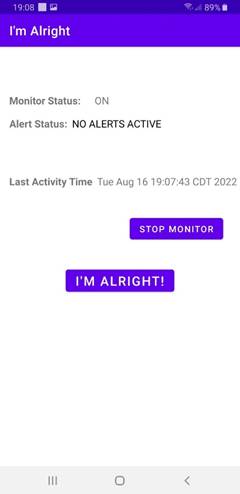
Tapping STOP
MONITOR will terminate the background monitoring process and all activity
detection and alert logic.